Showing posts with label Google Docs. Show all posts

Tuesday, June 7, 2011

Checkboxes are Back in Google Docs

Google Docs tried to get rid of checkboxes in the new UI, but users complained and the feature is now back by popular demand.

"This is actually a hybrid of checkboxes and the more recent selection model. So you can use checkboxes, but you can also still use Ctrl or Cmd to select multiple items. Another one I like a lot, is to use Shift to select many consecutive items at once (click on the checkbox of the first file, scroll down and hold down Shift when you click on a checkbox further down the list, this will select everything in between)."


Checkboxes may seem unnecessary, especially considering that people rarely select multiple files, but they're a familiar interface element that's easy to use. Not many people know that holding down Ctrl lets you select multiple files, even though it's a standard feature in most operating systems.

{ Thanks, Cougar. }

Saturday, May 21, 2011

How Google Docs Killed GDrive

"In The Plex", Steven Levy's recently launched book about Google, has an interesting story about GDrive, an online storage service developed by Google. People first found about GDrive from a leaked Google document, back in 2006. GDrive (or Platypus) turned out to be a service used by Google employees that offered many impressive features: syncing files, viewing files on the Web, shared spaces for collaborating on a document, offline access, local IO speeds. But Google wanted to launch GDrive for everyone.

At the time [2008], Google was about to launch a project it had been developing for more than a year, a free cloud-based storage service called GDrive. But Sundar [Pichai] had concluded that it was an artifact of the style of computing that Google was about to usher out the door. He went to Bradley Horowitz, the executive in charge of the project, and said, "I don't think we need GDrive anymore." Horowitz asked why not. "Files are so 1990," said Pichai. "I don't think we need files anymore."

Horowitz was stunned. "Not need files anymore?"

"Think about it," said Pichai. "You just want to get information into the cloud. When people use our Google Docs, there are no more files. You just start editing in the cloud, and there's never a file."

When Pichai first proposed this concept to Google's top executives at a GPS—no files!—the reaction was, he says, "skeptical." [Linus] Upson had another characterization: "It was a withering assault." But eventually they won people over by a logical argument—that it could be done, that it was the cloudlike thing to do, that it was the Google thing to do. That was the end of GDrive: shuttered as a relic of antiquated thinking even before Google released it. The engineers working on it went to the Chrome team.

In 2009, Google Docs started to store PDF files and one year later you could store any type of file in Google Docs. The service still doesn't offer a way to sync files. Even if GDrive was never released, Google Docs inherits most of its features. The main difference is that you no longer have to worry about file formats because you can open and edit documents in Google Docs.

{ Thanks, Kristian. }

Tuesday, May 17, 2011

Pivot Tables in Google Spreadsheets

Google Spreadsheets added an advanced feature that's really useful for summarizing data: pivot tables. "In essence, a pivot table does just that -- it allows you to 'pivot' or rotate data, thus looking at it from different angles and seeing a variety of patterns which may not be immediately obvious," explains Google Docs blog.

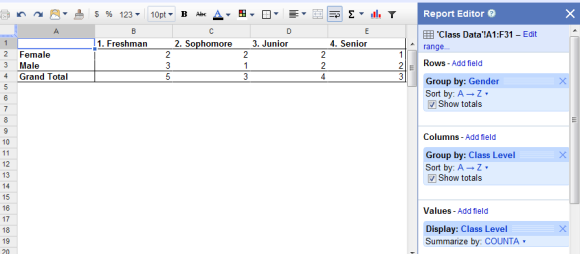
A pivot table is a powerful reporting tool that lets you group, filter, sort, count data. Google has an example of spreadsheet that includes information about some students, but it's not easy to summarize the data without using a pivot table. For example, you can group the students from each class level by gender. Just select "Pivot table report" from the "Data" menu, choose the categories of data to include (gender and class level) and the values to summarize ("class level" summarized by "COUNTA").


"A pivot table report is a dynamic table that lets you interpret data in different ways without ever having to enter a formula. Pivot table reports are particularly useful when you want to narrow down a large data set or analyze relationships between data points," suggests Google's help center, which also includes a guide for using this feature.

Friday, April 29, 2011

More Ways to Upload Files and Folders to Google Docs

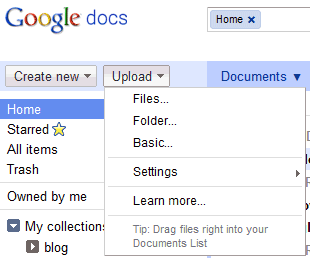
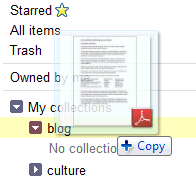
Google Chrome 7 started to support folder uploading, but not many people used this feature until Google Docs enabled it. "We've added folder upload via the new Upload menu in the latest versions of Chrome, Firefox and Safari. The existing folder structure is preserved on upload which means that folders within folders will also upload and become collections within collections," explained Google.


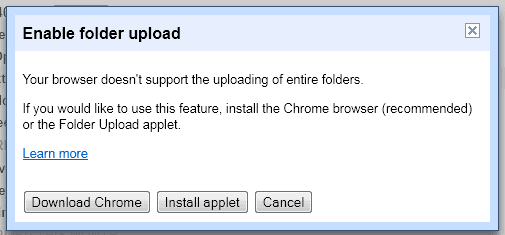
Firefox and Safari users will have to install a Java applet to upload folders. These browsers don't have native support for uploading folders, but the Java applet has an important advantage: you can upload both folders and files simultaneously.


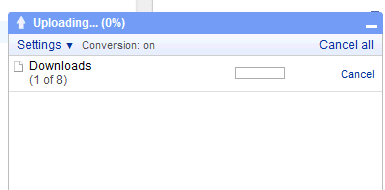
Google replaced the uploading page with a more intuitive interface. Files and folders are uploaded to the selected collection and you can check the progress in a new panel at the bottom of the page. Files are displayed immediately after they are uploaded, so you can quickly share them or edit them.


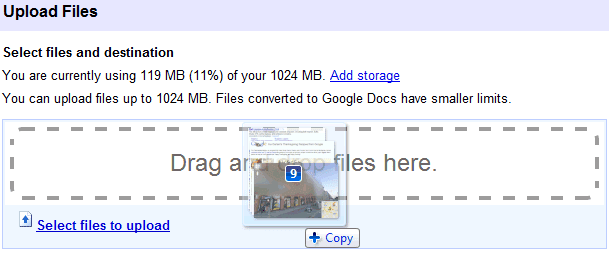
You can also upload files using drag and drop in Chrome, Firefox and Safari. It's faster and much easier, especially if you want to upload some files from the desktop. All these features are slowly rolled out, so you may not see them yet.


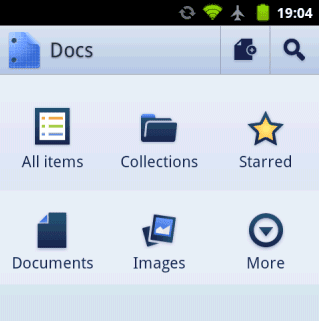
Google released a basic Android app for Google Docs that lets you upload files, in addition to viewing and editing your documents. The application doesn't add many features that aren't available in the mobile web app: you can quickly find files, share them with the phone contacts and create documents from photos. "The Docs app also allows you to open documents directly from Gmail. You can also add a widget to your home screen for easy access to three core tasks: jumping to your starred documents, taking a photo to upload, or creating a new document with one tap," informs Google.


Google Spreadsheets now lets you upload images and add them to your sheets. "From the Insert menu, select Image... Then, choose an image file to upload into your spreadsheet. With this feature, you can upload an image already stored on your computer, search for an image online, or add personal photos directly from one of your Picasa Web Albums."

Google Docs is now more about uploading and managing files and less about editing files, so the next logical step is to add file syncing.

Tuesday, April 12, 2011

Google Docs Adds Pagination and Native Printing

After two months of testing, Google Docs added a very useful feature: pagination. Google Docs adds "visual page breaks while you're editing your documents, so now you can see how many pages of that report you've actually finished. Headers now show up at the top of each page instead of just at the top of your doc, manual page breaks actually move text onto a new page and footnotes appear at the bottom of the pages themselves."


If you use Google Chrome, you'll see an important change when printing a document: it's no longer converted to PDF. "We've worked closely with the Chrome team to implement a recent web standard so we can support a feature called native printing. (...) With native printing, you can print directly from your browser and the printed document will always exactly match what you see on your screen," explains Google. Until now, Google converted the document to PDF and you had to download the file and print it using Adobe Reader or a similar PDF viewer.

Google Docs looks more and more like an advanced word processor. You no longer have to use workarounds for basic features like pagination and printing.

Tuesday, April 5, 2011

Brix, a New Google Docs App

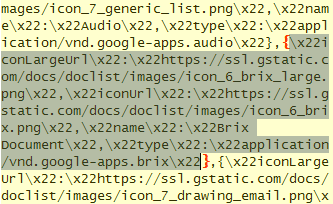
Google Docs code includes references to a new application code-named Brix. The files created using this application are called "Brix documents", so Brix can't be a photo editor or a video editor.


Here's an icon that could be used for Brix documents: it shows some Lego bricks. "Lego consists of colorful interlocking plastic bricks and an accompanying array of gears, minifigures and various other parts. Lego bricks can be assembled and connected in many ways, to construct such objects as vehicles, buildings, and even working robots," informs Wikipedia. Maybe Brix is just a collaborative web application based on SketchUp.


There are also icons for Fusion Table documents and Google Sites, which could be included in Google Docs:

Tuesday, March 29, 2011

Google Docs Tests Pagination

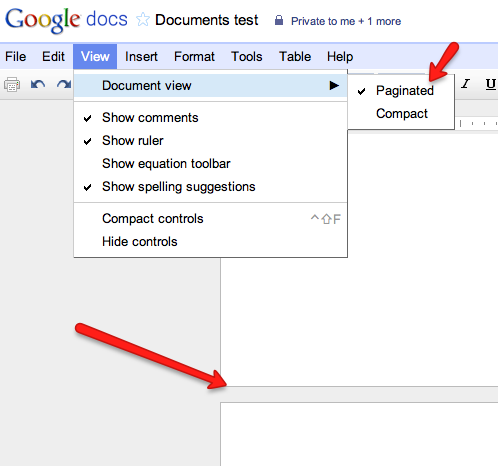
Google Docs tests a new feature that paginates documents. It will be available from View > Document view > Paginated and you'll still be able to use the compact view.

Right now, you can paginate documents using print preview, but this only shows a read-only view and it's slow.


{ Thanks, Cédric. }

Thursday, March 24, 2011

Upgrading Documents to the New Google Docs Editor

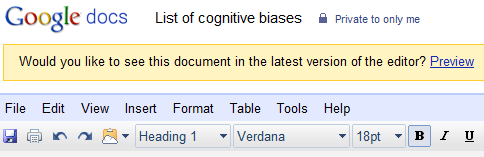
Last year's update of the Google Docs word processor had an important flaw: no backwards compatibility. You couldn't open your old documents in the new editor and you couldn't even upgrade your existing documents to the new format. Even if it's not obvious, Google Docs has two word processors that handle two incompatible native formats.

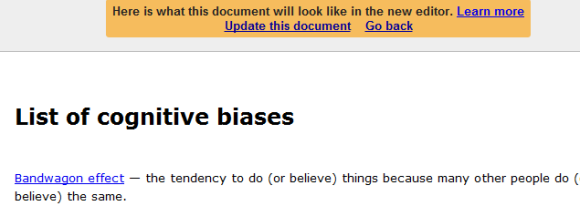
The bad news is that Google can't provide a smooth upgrade path. The changes are so profound that the new Google Docs editor can't import your old documents properly. If you open a document created using the old Google Docs editor, you'll notice a message informing you that the document can be previewed in the latest version of the editor. After previewing the document, you have the option to update the document.


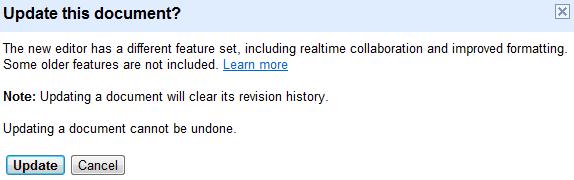
Unfortunately, if you update the document, you'll lose the revision history and some formatting options that were available in the old Google Docs.


"When you preview your upgraded document, you may notice that the formatting looks different. Older documents were basically webpages. To use them in the new version of Google documents, they need to be converted to a traditional word processing format. This conversion can be imperfect. It's not possible to edit the HTML of your document or use CSS after you upgrade," explains Google.

Another drawback is that you need to manually update each document. To make sure that you won't miss some features that were available in the old editor, Google didn't provide an automatic conversion option. Most people won't bother updating their documents and Google will be forced to keep the old Google Docs editor forever.

{ Thanks, Bogdan. }

Wednesday, March 16, 2011

Google Docs Discussions

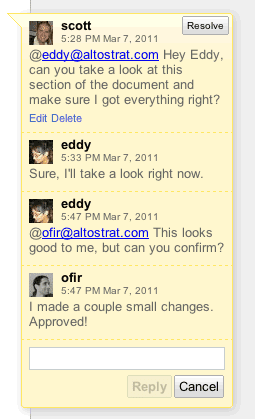
Google Docs improved the commenting system, by adding support for conversations.


"To start, we've improved the discussion flow by adding ownership and edit rights to individual comments. Each comment now has a timestamp and profile picture. Google Docs doesn't force you to delete comments. Instead, you can resolve comments to remove them from the visible document and view them later by clicking the discussions button at the top of any document," mentions Google.

One of the most useful new features is the support for notifications, which works just like in Google Buzz. Reply to a comment and the author of that comment will get an email notification. He'll be able to answer to your reply from the email interface, without having to visit Google Docs. Google also sends notifications if you're mentioned in a thread.

Unfortunately, discussions are only available for new documents. Google says that the explanation is that the new feature includes "a number of significant improvements".


{ Thanks, Andrew. }

Tuesday, March 8, 2011

Google Docs Brings Back Details View

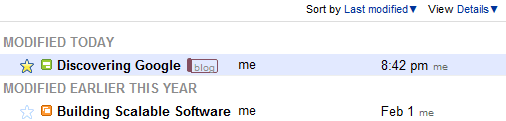
The latest design refresh of the Google Docs homepage added many useful features, but also made some controversial changes. Google decided to hide useful information like the last modified date and the list of collaborators from the list view because it was available in the sidebar.

If you missed the old interface, you can now switch to the details view and see some additional information next to the filename.


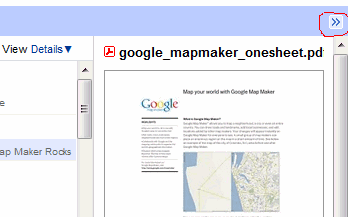
There's also a small icon that lets you temporarily hide the sidebar. For some reason, Google Docs doesn't permanently hide the sidebar when you click on the arrows.

Friday, February 25, 2011

Google Docs, Image Search and Copyright

Google Docs lets you pick Image Search results and add them to your documents. That's a good thing, but this feature could have been better thought out.

Google restricts the results to images licensed as Creative Commons that can be used commercially and that can also be modified. These restrictions aren't always necessary, since not all documents are used for business purposes. Google also recommends to "only select images that you have confirmed that you have the license to use", but it doesn't link to the pages that included the images. Google doesn't even include a small caption next to the image with links to the Creative Commons license and the original web page.


While this feature makes it easy to add image search results to your documents, it doesn't encourage users to visit the web pages that embedded the images or to give credit to the image creators because it's quite difficult to find these pages. You need to visit Google Image Search, type your query, restrict the results to images "labeled for commercial reuse with modification" and find the image you've previously picked. That's a lot of unnecessary work.

Thursday, February 24, 2011

Google Cloud Connect for Microsoft Office

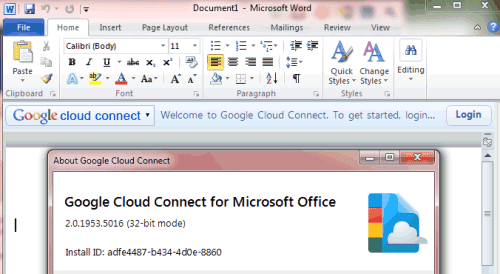
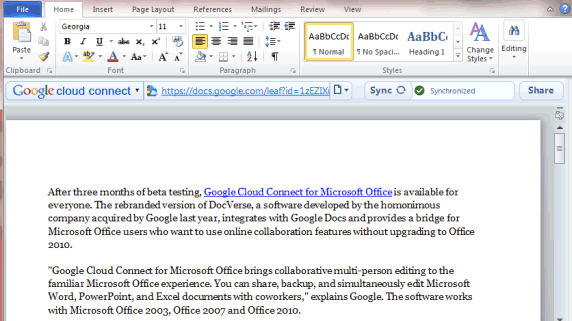
After three months of beta testing, Google Cloud Connect for Microsoft Office is available for everyone. The rebranded version of DocVerse, a software developed by the homonymous company acquired by Google last year, integrates with Google Docs and provides a bridge for Microsoft Office users who want to use online collaboration features without upgrading to Office 2010.

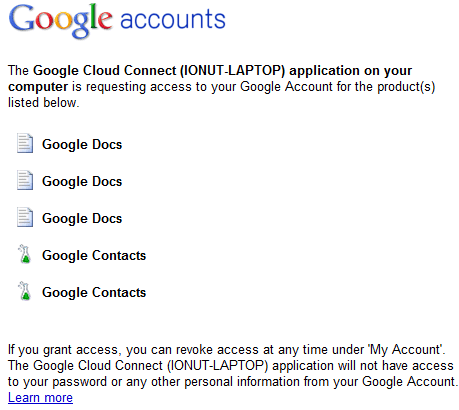
"Google Cloud Connect for Microsoft Office brings collaborative multi-person editing to the familiar Microsoft Office experience. You can share, backup, and simultaneously edit Microsoft Word, PowerPoint, and Excel documents with coworkers," explains Google. The software works with Microsoft Office 2003, Office 2007 and Office 2010.


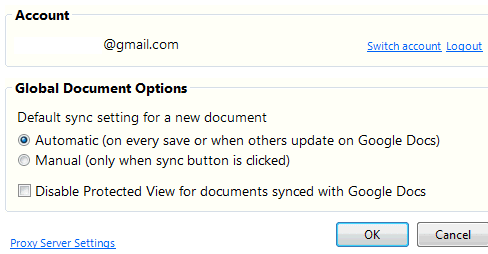
By default, the plugin automatically saves online and syncs all the files you edit in Microsoft Office, but you can change this setting.


I created a new document in Word 2010, but Google saved it as a read-only Word file in Google Docs. Apparently, the document can only be edited using Microsoft Office and not using Google's online word processor. Since you can't even open existing files from Google Docs, this software seems to be too limited. It's useful if you and all your collaborators only use Microsoft Office and Google's plugin.

Friday, February 18, 2011

More File Formats in Google Docs Viewer

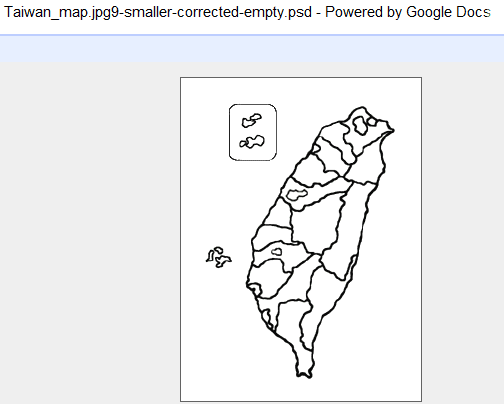
Google Docs Viewer added support for a lot of new file formats. You can now use it to open Microsoft Excel spreadsheets, Microsoft PowerPoint presentations from Office 2007 and Office 2010, Apple Pages files, PostScript documents, Microsoft XPS documents, TrueType fonts, graphics from Adobe Illustrator, Adobe Photoshop, Autodesk AutoCad and SVG files.

"Not only does this round out support for the major Microsoft Office file types (we now support DOC, DOCX, PPT, PPTX, XLS and XLSX), but it also adds quick viewing capabilities for many of the most popular and highly-requested document and image types," informs Google.

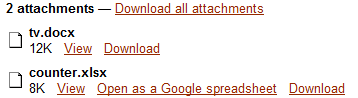
Google Docs Viewer is integrated with Gmail and Google Docs, so you can now open many Gmail attachments and Google Docs files without installing additional software.


Monday, January 31, 2011

A New Google Docs Homepage

As previously anticipated, Google Docs has a new homepage that's better suited for managing files, not just editable documents.

There's a sidebar that shows a small thumbnail and some useful information about the selected file. Google added new filters for images and videos, for public and private files, but dropped the advanced search form, which was more difficult to use. The drawback is that there are many search features that are no longer available in the interface and you need to use operators to get them back.
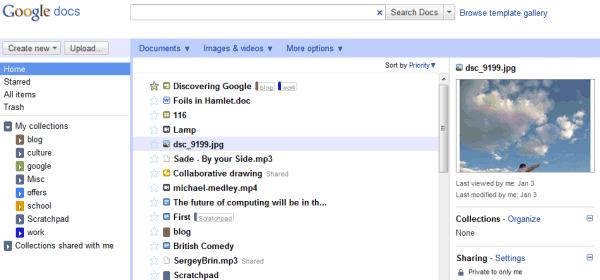


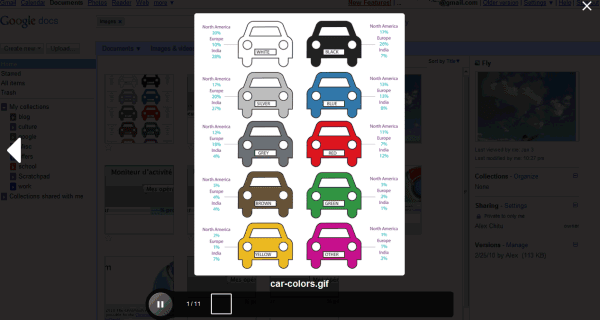
The slideshow feature borrowed from Google Wave is one of the most useful additions:

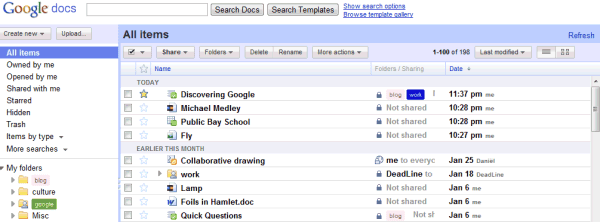
For some reason, Google Docs has a new name for folders: they're now called collections. "Collections are designed to combine the best features of labels and folders. A file can live in multiple collections, just like with Gmail labels. Collections can also be stored hierarchically, just like folders on your desktop. And of course, collections can be shared, just like you can share docs," explains Google. Technically speaking, none of these features is new, but it's much easier to add a file to multiple folders collections. Unfortunately, Google's new terminology will probably confuse users and many people won't realize that clicking "Organize" lets you add a file to a collection.

Google also dropped checkboxes, so now it's much more difficult to select multiple files: you need to use Shift for contiguous selections or Control for scattered files (Cmd if you're using a Mac).

Another new feature is priority sorting, which orders files based on importance. For example, a starred document that has been last updated 5 hours ago is likely to rank higher than a more recent document that hasn't been starred. Google says that it's like Gmail's Priority Inbox, but there's an important difference: Gmail always sorts conversations by date.

Overall, the new Google Docs homepage is a mixed bag. Google tries to morph Google Docs into an online storage service, while moving away from the initial goal of the service: editing documents online. Suddenly Google Docs is no longer an appropriate name for the service, 1 GB of free storage is not enough, the APIs are no longer useful because they're limited to editable documents and Google's applications seem limited because they can't handle all the files that can be uploaded. The new homepage can't address these issues, but it manages to make the interface more complicated: now it's a lot easier to open a file when you want to select it and to select the file when you want to open it.

Tip: If you don't like the new interface, there's an option at the top of the page that lets you temporarily switch to the old version. You should bookmark the URL: https://docs.google.com/?ui=1, since there's no option to permanently switch to the old UI.

{ Thanks, Karol and Ben. }

Tuesday, January 18, 2011

Google Docs to Add Preview Pane, Music Player, Collections

Google Docs code includes references to some upcoming features that could make the service better suited for storing media content. There are many references to a preview pane that will allow you to view more information about your files and even check the content without actually opening the files.


There's even a player for audio files, much like the video player launched last week. The preview pane will probably allow you to play music files from the Google Docs homepage.


You'll also be able to create playlists (here's the icon for playlists):


Another new option lets you group files from multiple folders in collections.


At the moment, Google Docs includes a small list of applications, but that will change when you'll be able to add third-party apps. That's why Google will have to add a new option for selecting the application that will open a certain file.


It's likely that some of these features will be available in the new Google Docs interface that has been accidentally revealed in a YouTube video.

Thursday, January 6, 2011

Google Docs Plays Videos

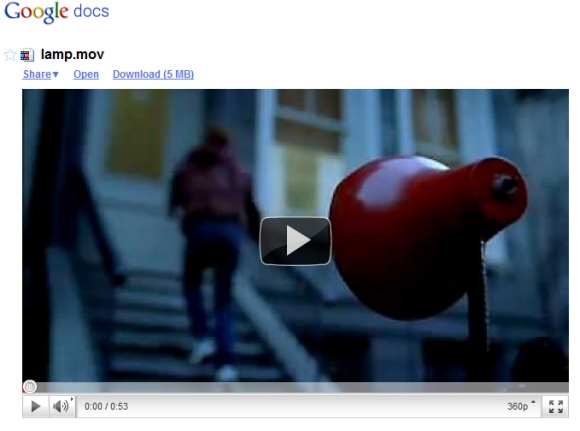
Google Docs lets you upload any kind of files, but not many of them can be previewed in Google Docs. You can open Microsoft Office documents and presentations, PDF files and some images. Now you can also play videos.
Uploaded video files can be up to 1 GB. These are the most common video formats that you can upload and play:

* WebM files (Vp8 video codec and Vorbis Audio codec)
* .MPEG4, 3GPP and MOV files - (h264 and mpeg4 video codecs and AAC audio codec)
* .AVI (many cameras use this format - typically the video codec is MJPEG and audio is PCM)
* .MPEGPS (MPEG2 video codec and MP2 audio)
* .WMV
* .FLV (Adobe - FLV1 video codec, MP3 audio)

Since Google uses YouTube's player, it's obvious that these are the formats supported by YouTube. After uploading a video to Google Docs, you'll have to wait until it's processed.

Why would someone upload videos to Google Docs instead of using YouTube? When Google adds more free storage to Google Docs and makes it easy to sync all your files, you'll upload documents, photos, music files and videos. Google Docs lets you organize files into folders, share multiple files with your friends and even keep old versions of your files.


Tip. To find all the videos uploaded to your Google Docs account, use this URL: https://docs.google.com/#videos.

{ Thanks, Cougar Abogado. }
Wednesday, January 5, 2011

Google Docs Viewer for Spreadsheets

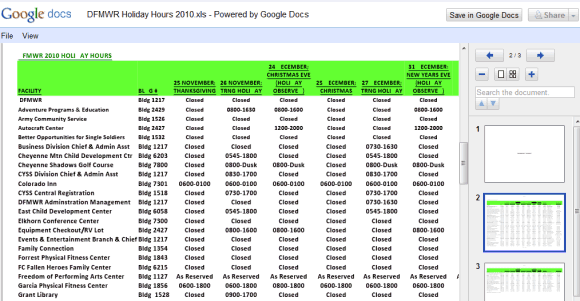
Google Docs Viewer now works for spreadsheets too. Even if Google informs that the service can be used to preview "PDF documents, PowerPoint presentations, and TIFF files", you can also try Adobe Postscript files, Word documents and Excel spreadsheets.


The viewer is not optimized for spreadsheets, so Google has to convert them to documents. That's probably the reason why they don't look very well, they're not always readable and some of the characters are missing.


Unfortunately, if you click "Save in Google Docs", Google saves the spreadsheet as a regular non-editable file. To open the file in Google Spreadsheets, you need to right-click, select "Make a Google Docs copy", wait a few seconds and open the new file.

Wednesday, December 15, 2010

A New Google Docs Interface

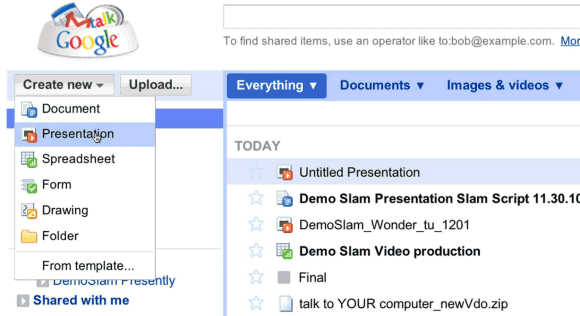
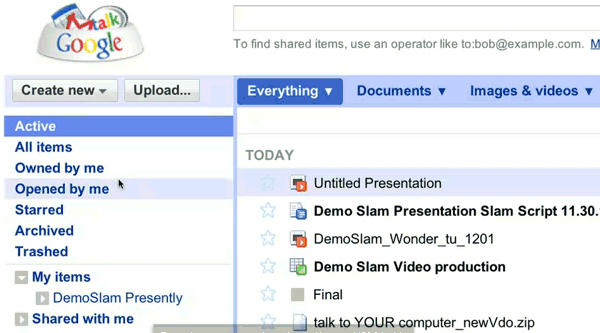
A recent Demo Slam video shows a new Google Docs interface that has separate sections for documents, images & videos and other files, new menu items for active and archived documents, a new navigation bar. Most likely, the new interface is tested internally at Google.


Here's the video:


{ spotted by Andrew }
Tuesday, November 23, 2010

Drag and Drop Upload in Google Docs

Google Docs added support for drag and drop uploads, a feature that's already available in Gmail. The main advantage is that the new feature doesn't use Flash or another plug-in, so it should be more reliable.

"If you're using Chrome, Safari, or Firefox, you'll be able to quickly drag files into the drop area and shoot them up to the cloud," informs the Google Docs blog.


In the near future, this option could be used to upload folders, not just multiple files. Google Chrome already supports directory upload using the input tag.

Google Docs also added a menu option that lets you hide the title bar: View > Compact Controls. It's only available in the new document editor and it's probably more useful than the "hide controls" feature from the previous version of the editor.

Wednesday, November 17, 2010

Edit Documents in Mobile Google Docs

Until today, the mobile version of Google was only useful if you wanted to read a document or download some of your files. From now on, documents will no longer be read-only. If you have a phone or a tablet that runs Android 2.2+ or iOS 3.0+ and the Google Docs interface language is set to English, you'll be able edit documents from your mobile device and the best thing is that you don't need to install a new application.

"It's easy to get started: visit docs.google.com in a browser on a supported device, and select the document you want to edit. Then, when you're viewing it, press the Edit button to switch to the mobile editor," suggests Google.

I couldn't find the Edit button, but that's because the new features aren't yet available to everyone. Google promises that the mobile editor will be rolled out in the next few days and you won't have to buy an iPad or a Samsung Galaxy Tab to use it because it will also work on an iPhone or an Android phone that runs Froyo.

Unfortunately, the mobile editor will only work for documents created using the new document editor. It's difficult to understand why Google couldn't find a way to convert the documents created using the old editor to the new format.